10 Claude Code Marketing Workflows for Google and Meta Ads
A step-by-step guide for non-technical marketers

Angrez Aley
Senior paid ads manager
Contents
Most paid media work is moving data around. Pulling reports, formatting CSVs, checking URLs, comparing last week to this week. The kind of work that takes 30 minutes per account and adds up to hours per week.
Claude Code can automate most of it. It's a terminal-based tool from Anthropic — you describe what you want in plain English, it writes and runs the code. No coding experience needed.
This guide covers 10 specific workflows for Google and Meta ads. Each one includes the exact steps to build it, the prompt to use, and the things to watch out for.
Build It With Claude Code
Manual setup
Setup time: 30–60 minutes
Direct 1-Click Connect via Ryze AI
From $40/month. Free trial available.
Before You Start: One-Time Setup (Mac)
These workflows require a few things set up first. Do this once, use it for everything after.
Step 1: Install VS Code
VS Code is a free code editor from Microsoft. It's where all the scripts will live and run.
- Go to code.visualstudio.com
- Click the download button for Mac (it will detect your system automatically)
- Open the downloaded .zip file — it will unpack into an application called "Visual Studio Code"
- Drag it into your Applications folder
- Open VS Code from Applications
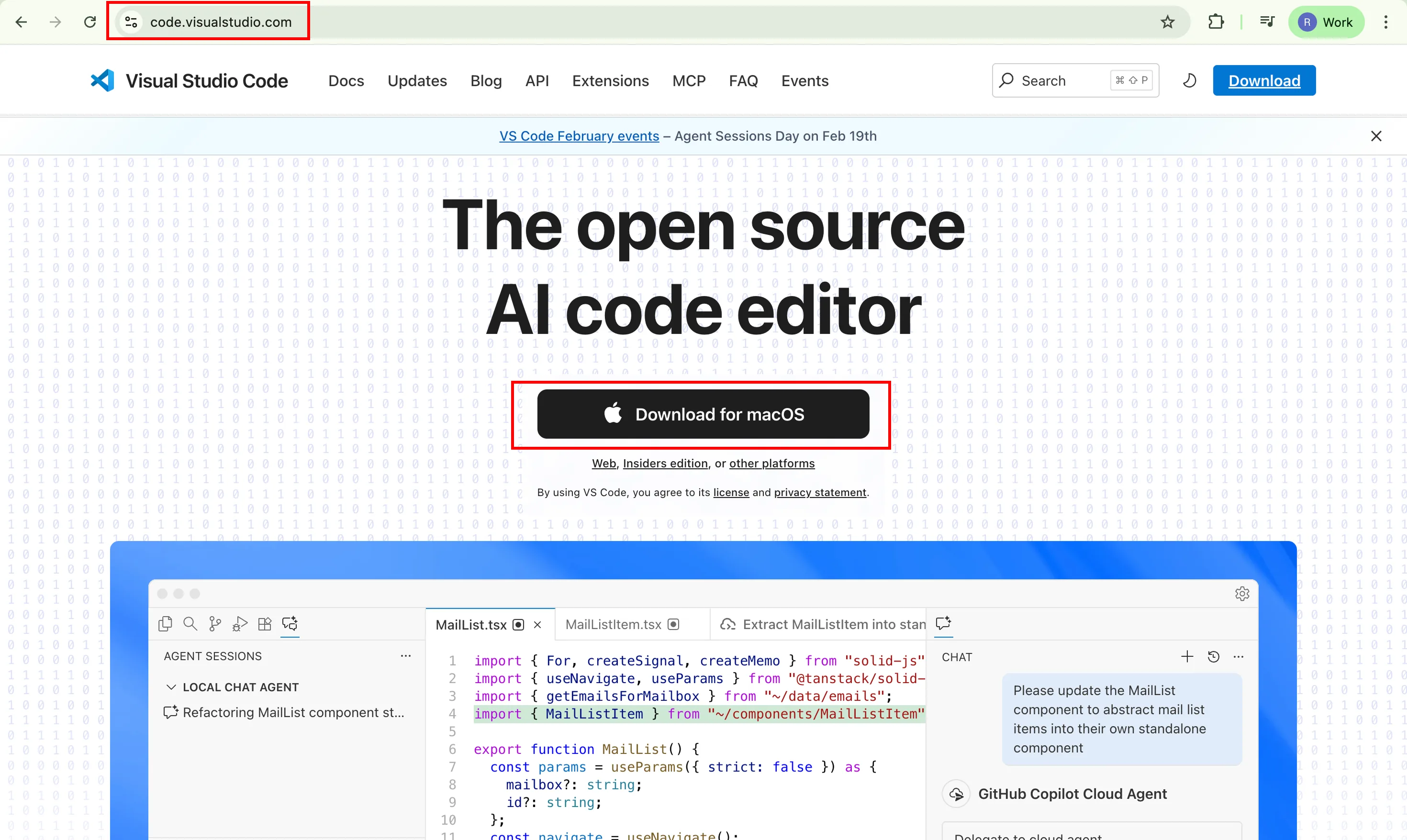
That's it. VS Code is installed.
Step 2: Open the terminal inside VS Code
VS Code has a built-in terminal, so you don't need to open a separate app.
- Open VS Code
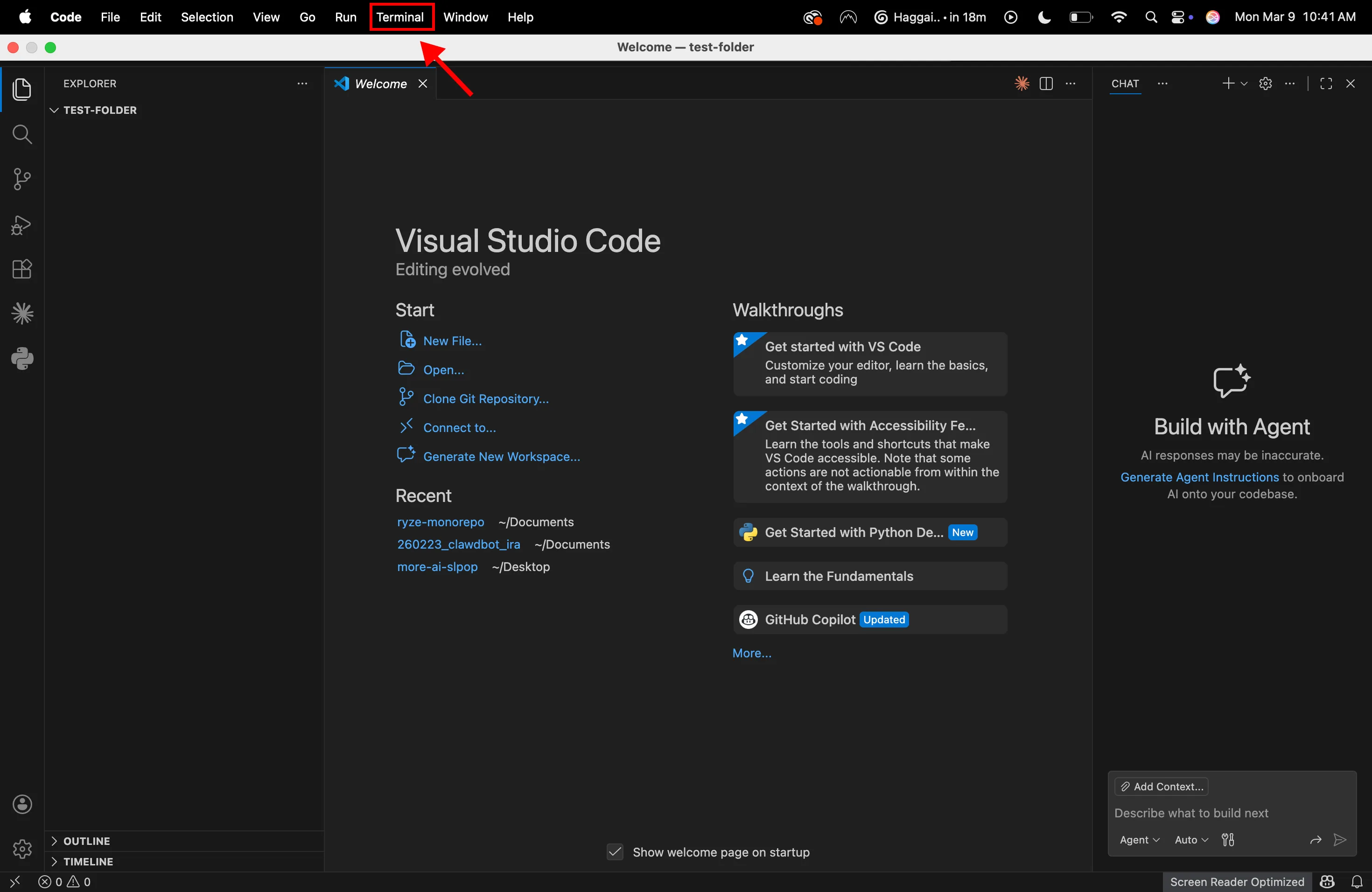
- Go to the top menu: Terminal > New Terminal
- A terminal panel will appear at the bottom of the screen — this is where you'll type commands
Step 3: Install Claude Code
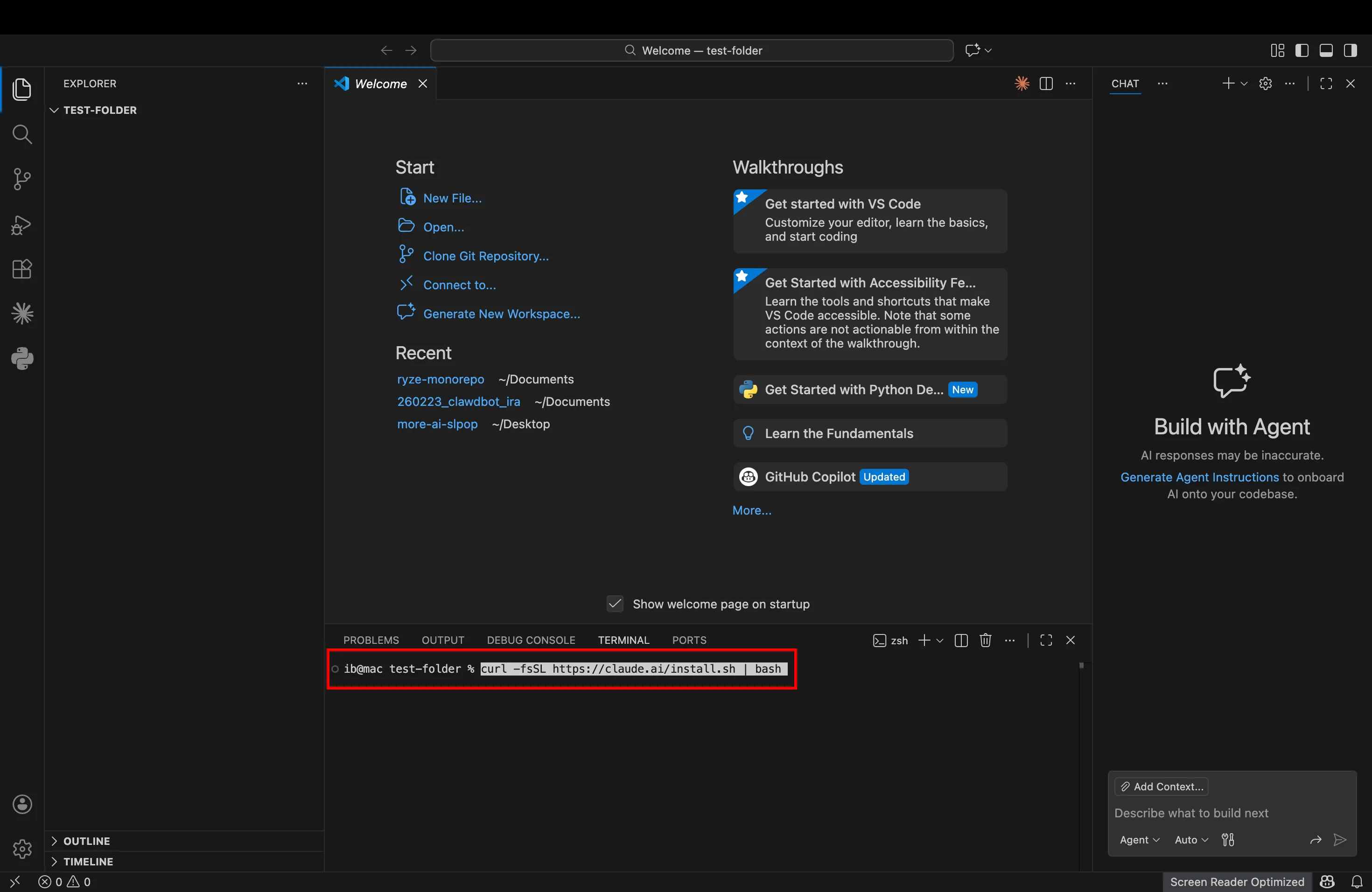
Run this command in the VS Code terminal:
curl -fsSL https://claude.ai/install.sh | bash
This installs Claude Code on your machine. It takes about 2 minutes. No other dependencies needed.
You need a paid Claude subscription (Pro or Max) or Anthropic API credits to use it. If you don't have one, sign up at claude.ai first.
After the install finishes, type "claude" in the terminal and hit enter. It will ask you to log in with your Anthropic account. Follow the prompts — it opens a browser window for authentication.
Step 4: Install the Claude Code VS Code extension
This gives you a nicer interface for Claude Code directly inside VS Code, instead of just using the terminal.
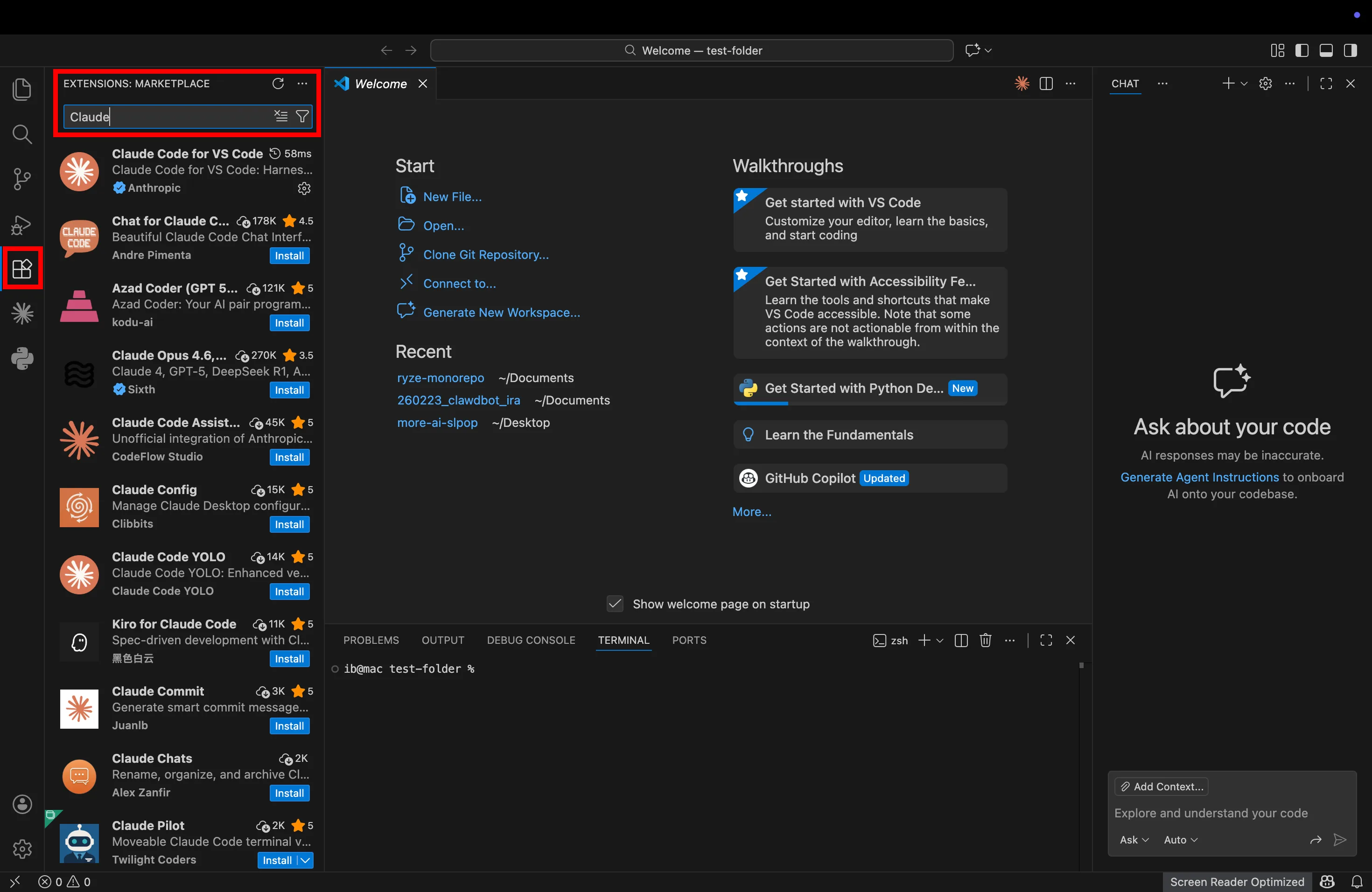
- In VS Code, press Cmd+Shift+X to open the Extensions panel
- Search for "Claude Code"
- Find the one published by Anthropic (the official one) and click Install
- After it installs, you'll see a Spark icon in the left sidebar — click it to open Claude Code
You can now use Claude Code either through the sidebar panel or the terminal. Both work. The sidebar is easier for beginners because it shows code changes as visual diffs.
If the extension doesn't appear after installing, go to the top menu: View > Command Palette, type "Developer: Reload Window" and hit enter.
Step 5: Connect Google and Meta Ads via MCP
MCP (Model Context Protocol) is what lets Claude Code talk to your ad accounts. It connects Claude to live Google and Meta Ads data — no API code, no developer tokens, no credentials to manage yourself (the Meta side is documented in the Meta Ads integration docs). For a deeper dive, see our guide on Claude code ads.
Ryze AI MCP
One connection for both platforms
Book a setup call to get your personal MCP link
Tell Claude Code: "Add an MCP server with URL [link you get on the call]"
Done.
Open source MCP servers
Free, more setup, separate per platform
For Google Ads, tell Claude Code: "Add the Google Ads MCP from github.com/cohnen/mcp-google-ads"
For Meta Ads, tell Claude Code: "Add the Meta Ads MCP using npx -y meta-ads-mcp"
Type /mcp to verify both connections — Claude Code walks you through any credentials needed
Step 6: Create a project folder
- Create a new folder on your Mac — call it something like "ad-scripts"
- In VS Code, go to File > Open Folder and select it
- Open the terminal (Terminal > New Terminal)
- Type "claude" and hit enter
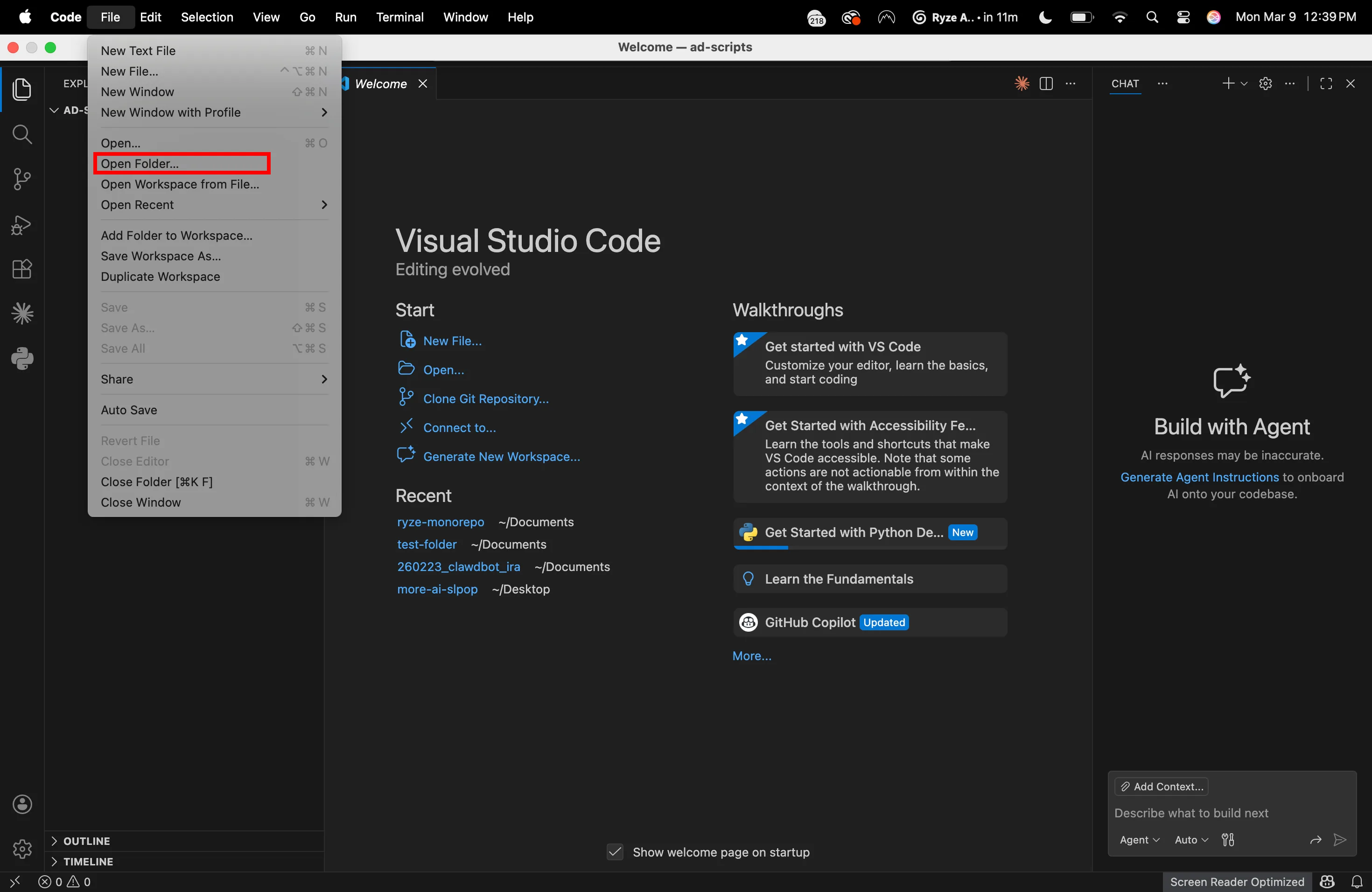
Claude Code is now running inside your project folder. Everything you build will be saved here.
01
Full Account Audits
Pulls campaign structure, spend, and performance metrics across Google and Meta. Flags campaigns with zero conversions, ad groups with no impressions, mismatched bid strategies, and budget allocation issues. Outputs a structured brief.
Step-by-step
- Open Claude Code in your project folder.
- Paste this prompt:
"Write a Python script that connects to the Google Ads API using my credentials. Pull all active campaigns for the last 30 days. For each campaign, get: name, status, bid strategy, spend, impressions, clicks, conversions, and ROAS. Flag any campaign with zero conversions and spend over $100. Flag any campaign with impressions but zero clicks. Output the results as a CSV and print a summary of flagged issues."
- Claude Code will generate a script and ask for your API credentials. Provide your developer token, client ID, client secret, customer ID, and refresh token when prompted.
- Run the script. Review the output CSV and the flagged issues summary.
- To add Meta, follow up with:
"Now add a second section that does the same thing for Meta Ads using the Facebook Business SDK. Pull campaign-level data for the same 30-day window. Same metrics, same flags. Combine both into one CSV with a 'platform' column."
- To make the output client-ready, add:
"Format the flagged issues as a bullet-point summary at the top of the CSV, with the raw data below."
Watch out for
API credentials are the hardest part. Once they're working, the audit itself runs in seconds. Google Ads reporting data lags by a few hours, so run this after 10am for complete data. The audit catches structural issues (broken tracking, wasted spend), not strategic ones (wrong audience, bad creative angle).
02
Automated Weekly Client Reports
Pulls the prior week's performance from Google and Meta. Builds a summary table with spend, clicks, conversions, CPA, ROAS. Calculates week-over-week changes. Emails the report automatically every Monday.
Step-by-step
- Open Claude Code and paste:
"Write a Python script that pulls last week's campaign performance data from Google Ads and Meta Ads. For each campaign, get: spend, impressions, clicks, conversions, CPA, and ROAS. Also pull the same metrics for the week before that. Calculate the percentage change for each metric week-over-week. Format the results as an HTML email table. Send the email via SMTP to [your email]."
- Claude Code will generate the script. It will use pandas to merge and calculate the deltas, and smtplib to send the email.
- For Gmail, you need an app password. Go to myaccount.google.com > Security > 2-Step Verification > App Passwords. Generate one and provide it when Claude Code asks for SMTP credentials.
- Test the script manually first. Check the email formatting.
- To add a highlights section, follow up with:
"Add a section at the top of the email that lists the top 3 campaigns by ROAS improvement and the bottom 3 by ROAS decline. Write each as a plain sentence, not a table row."
- To schedule it, ask:
"How do I set up a cron job to run this script every Monday at 7am?"
Claude Code will give you the exact cron syntax for your OS.
Watch out for
The Meta Insights API can be slow on large accounts. If the script times out, tell Claude Code — it will switch to asynchronous report requests automatically. The week-over-week comparison is most useful when run consistently. If you skip a week, the delta calculations will be off.
03
Budget Pacing and Overspend Forecasting
Tracks daily spend across all active campaigns. Compares actual spend to where it should be based on monthly budget. Projects end-of-month delivery. Sends an alert if any account is pacing more than 15% over or under target.
Step-by-step
- Create a CSV file called "budgets.csv" with three columns: account_name, monthly_budget, platform (google or meta). Fill in your accounts.
- Open Claude Code and paste:
"Write a Python script that reads budgets.csv, then for each account pulls month-to-date spend from the appropriate API (Google Ads or Meta Ads). Calculate projected end-of-month spend using: (actual spend / days elapsed) × total days in month. If projected spend is more than 115% or less than 85% of the monthly budget, send an email alert with the account name, current spend, projected spend, and the variance percentage."
- Run the script and verify the projections against what you see in the platform UIs.
- To schedule it daily, ask Claude Code:
"Set this up as a daily cron job that runs at 10am."
- To add a summary dashboard, follow up with:
"Also output a CSV with all accounts showing: account name, monthly budget, spend to date, projected spend, pacing status (over/under/on track), and variance percentage."
Watch out for
The projection formula is linear — it assumes every day spends the same. Early in the month (days 1-7), the projections will be noisy. They stabilize around day 10. Run the script after 10am to avoid incomplete reporting data from the previous day. Budget targets live in your CSV, not in the APIs — keep that file updated when budgets change.
04
Creative Performance Breakdowns
Pulls ad-level data from Meta and Google. Ranks every ad by ROAS, CTR, and CPA. Groups by format type (video, static, carousel) and creative angle. Outputs a "what's working" summary.
Step-by-step
- Make sure ad naming conventions include the creative angle and format. Example: "testimonial_video_30off_v2" or "ugc_carousel_freetrial_v1". If naming is inconsistent, clean it up first — this workflow depends on it.
- Open Claude Code and paste:
"Write a Python script that pulls ad-level data from Meta Ads for the last 30 days. For each ad, get: ad name, ad set name, spend, impressions, link clicks, purchases, purchase value. Calculate ROAS (purchase value / spend) and CTR (link clicks / impressions). Parse the ad name to extract the creative angle (first segment before underscore) and format type (second segment). Group results by angle and by format. Show average ROAS and total spend for each group. Sort by ROAS descending. Output as CSV."
- Run it and review the groupings. If the parsing is wrong, tell Claude Code how the naming convention works and it will adjust.
- To add Google, follow up with:
"Add a section that pulls Google Ads responsive search ad asset performance. Show which headlines and descriptions have the best click-through rates."
- For a client-ready version:
"Format the top 5 and bottom 5 ads as a summary email with the creative angle, format, ROAS, and spend."
Watch out for
If ad names are random strings or defaults, skip the grouping step — just use the ranked list by ROAS. Meta's API defaults to 7-day click, 1-day view attribution. To change this, tell Claude Code the preferred attribution window and it will adjust the API parameters. Google doesn't report creative-level ROAS the same way — asset performance data shows relative ratings (best, good, low) rather than exact metrics.
05
Cross-Channel Attribution Checks
Compares conversions reported by Google and Meta against a third-party source (GA4, CRM, or Shopify). Flags accounts where platform-reported conversions are significantly higher than actual conversions, indicating double-counting.
Step-by-step
- Export actual conversion data as a CSV. This could be GA4 conversions, Shopify orders, or CRM closed deals. Columns needed: date, total_conversions.
- Open Claude Code and paste:
"Write a Python script that pulls conversion counts from Google Ads and Meta Ads for the last 30 days, by day. Also read actual_conversions.csv which has date and total_conversions columns. For each day, compare the sum of Google + Meta reported conversions against actual conversions. Calculate an inflation ratio (reported / actual). Flag any day where the ratio exceeds 1.3. Also calculate the 30-day average inflation ratio. Output as CSV and email a summary if the average ratio exceeds 1.3."
- Run it and review the daily comparison.
- For a monthly trend, follow up with:
"Add a column showing rolling 7-day average inflation ratio so I can see if the gap is growing or shrinking."
Watch out for
The platforms will never match exactly — they use different attribution models and windows. The goal is to catch accounts where the gap is large enough that decisions are being made on inflated numbers. Run this monthly, not weekly — you need enough conversion volume for the comparison to be meaningful.
Build It With Claude Code
Manual setup
Setup time: 30–60 minutes
Direct 1-Click Connect via Ryze AI
From $40/month. Free trial available.
06
Audience Overlap and Wasted Spend Detection
Pulls targeting specs from all active Meta ad sets. Identifies pairs with overlapping interest targeting, shared lookalike sources, or identical custom audiences. Flags likely self-competition.
Step-by-step
- Open Claude Code and paste:
"Write a Python script that pulls all active ad sets from my Meta Ads account. For each ad set, get the targeting spec including interests, behaviors, custom audiences, and lookalike specs. Compare every pair of ad sets. Flag any pair that shares more than 50% of the same interest targets, or uses the same lookalike seed audience, or targets the same custom audience. Output the flagged pairs with both ad set names, the overlap type, and the combined spend."
- Run it and review the flagged pairs.
- To prioritize, follow up with:
"Sort the flagged pairs by combined spend descending, so I see the most expensive overlaps first."
Watch out for
This doesn't work for Advantage+ campaigns or broad targeting where Meta handles audience selection automatically. It's most useful for accounts still using detailed interest-based or lookalike targeting. The overlap estimate is based on targeting inputs, not actual auction overlap — but shared targeting specs are a reliable proxy for self-competition.
07
Search Term Mining and Negative Keyword Lists
Pulls search term reports from Google Ads. Identifies terms with high spend and no conversions. Groups bad terms by common words. Also flags converting terms that aren't explicitly added as keywords.
Step-by-step
- Open Claude Code and paste:
"Write a Python script that pulls the search term report from Google Ads for the last 60 days. For each search term, get: search term, campaign, ad group, impressions, clicks, spend, and conversions. Filter for terms with spend over $50 and zero conversions. Count the most common words across those terms and group them. Output two things: a list of suggested negative keywords sorted by total wasted spend, and a list of converting search terms that don't match any existing keyword in their ad group. Save both as CSVs."
- Run it and review the negative keyword suggestions.
- To adjust thresholds, follow up with:
"Change the spend threshold to $30 and also flag terms with spend over $100 and ROAS below 0.5."
- To apply negatives directly, ask:
"Add a function that takes a list of negative keywords from a CSV and adds them to the specified campaign as campaign-level negatives via the API."
Watch out for
Google hides a significant percentage of search terms for privacy reasons. The script works with what's visible — still useful, just incomplete. For high-CPC industries ($20+ per click), lower the spend threshold. For ecommerce with $1-2 CPCs, raise it. Run this biweekly — monthly is too slow to catch wasted spend, weekly is overkill for most accounts.
08
Landing Page and Tracking QA
Pulls every final URL from active Google Ads campaigns. Checks each for broken links (404s, redirects, timeouts). Verifies the presence of Google tag and Meta pixel in the page HTML. Reports issues. For the complete picture, read our guide to Meta Ads pricing.
Step-by-step
- Open Claude Code and paste:
"Write a Python script that pulls all unique final URLs from active Google Ads campaigns. For each URL, make an HTTP GET request and check the status code. Flag any URL that returns a 404, 500, or takes more than 10 seconds to respond. Also check if the HTML response contains 'gtag' or 'G-' (Google tag) and 'fbq' (Meta pixel). Output a CSV with columns: URL, status code, has_google_tag, has_meta_pixel, campaign_name. Flag any URL missing either tag. Add a 1-second delay between requests to avoid hammering the server."
- Run it and review the flagged URLs.
- To add UTM validation, follow up with:
"Also check if each URL contains utm_source, utm_medium, and utm_campaign parameters. Flag any URL missing UTMs."
- To schedule weekly, ask Claude Code for the cron setup.
Watch out for
Pages that load tracking via JavaScript tag managers (GTM loaded asynchronously) may show as "missing pixel" even when the pixel fires correctly. The script checks the raw HTML, not the rendered page. For most setups this works fine. If there are false negatives, tell Claude Code to note which URLs use GTM so those can be verified manually.
09
Competitor Ad Monitoring
Pulls active ads from competitor Facebook pages via the Meta Ad Library API. Stores them in a local database. Sends a weekly digest showing new ads launched, ads that stopped running, and patterns in messaging.
Step-by-step
- Get competitor Facebook page IDs. Go to the Meta Ad Library (facebook.com/ads/library), search for the competitor, and note the page ID from the URL.
- Create a CSV called "competitors.csv" with columns: competitor_name, page_id.
- Open Claude Code and paste:
"Write a Python script that reads competitors.csv, then for each competitor queries the Meta Ad Library API for all active ads. Store the results in a local SQLite database with columns: competitor, ad_id, creative_body, creative_link_title, start_date, pulled_date. Each week, compare the current pull against last week's data. Identify new ads (ad_ids not in last week's pull) and stopped ads (ad_ids in last week's pull but not this week's). Email a digest with new ads and stopped ads grouped by competitor."
- Run it once to populate the database. Run it again the following week to get the first comparison.
- To track messaging patterns, follow up with:
"Add a section to the digest that lists the most common words and phrases across all new ads this week."
Watch out for
The Ad Library API is public but doesn't include performance data — it shows what's running but not how it's performing. Rate limits apply — if monitoring more than 20 competitors, the script needs delays between requests. Google has no equivalent public API for search ads.
10
Anomaly Detection and Alerting
Checks daily campaign performance against trailing 7-day averages. Flags any campaign where spend, CTR, CPA, or conversion rate deviates more than 2 standard deviations from the average. Sends a same-day alert.
Step-by-step
- Open Claude Code and paste:
"Write a Python script that pulls yesterday's performance data for all active campaigns on Google Ads and Meta Ads. For each campaign, also pull daily data for the prior 7 days. Calculate the mean and standard deviation of spend, CTR, CPA, and conversion rate over those 7 days. If yesterday's value for any metric is more than 2 standard deviations from the mean, flag it. Only flag campaigns with average daily spend above $20 (to avoid noise from low-volume campaigns). Email a summary of all flagged campaigns with: campaign name, platform, metric, yesterday's value, 7-day average, and how many standard deviations off."
- Run it and review the flags. Adjust the standard deviation threshold if needed — 2.5 for noisier accounts, 1.5 for tighter monitoring.
- To schedule daily, ask Claude Code for the cron setup. Run after 10am for complete data.
- To reduce false positives, follow up with:
"Ignore any flag where the absolute dollar difference in spend is less than $10, even if the standard deviation threshold is exceeded."
Watch out for
Seasonal accounts, flash sales, and promo days will trigger false alerts. Consider pausing anomaly detection during known promotional periods, or raising the threshold temporarily. This is the fastest way to catch broken tracking, CPC spikes, or conversion drops — issues typically surface within 24 hours.
Tips for Getting the Most Out of Claude Code
Write specific prompts. "Build a reporting tool" is too vague. "Pull last 30 days of campaign data from Google Ads, show spend, conversions, and ROAS by campaign, flag anything with ROAS below 1.0" is specific enough to produce working code on the first try.
Expect 1-3 iterations. The first output usually works about 80% of the way. Run it, paste the error back into Claude Code, let it fix the issue. By the third iteration it's usually clean.
Start with the simplest workflow. Budget pacing (workflow 3) or landing page QA (workflow 8) have the fewest dependencies and give a quick win. Build confidence before tackling the audit or attribution checks.
Keep everything in one project folder. Store all scripts in the same directory. Claude Code can reference and modify existing scripts, so having everything in one place makes iteration easier.
Read what Claude Code writes. It explains the logic as it generates code. Over a few weeks, you start understanding how API calls work, what a DataFrame does, why pagination matters. The learning happens by exposure.
Run scripts manually before automating. Before scheduling anything with cron, run it a few times by hand. Make sure the output looks right and the alerts fire when they should. Automate after you trust it.
Build It With Claude Code
Manual setup
Setup time: 30–60 minutes
Direct 1-Click Connect via Ryze AI
From $40/month. Free trial available.





Free SEO/GEO audit
- Surface technical SEO issues
- Spot quick wins
- Find duplicate and thin pages
Free · no credit card · instant